

We recently upgraded our email service to give our clients a better, more reliable email experience. If you’re one of our hosting clients, you might be wondering how to get everything set up on your phone, laptop, tablet, and anywhere else you check email. Don’t worry, we’ve got you covered.
This guide will walk you through everything you need to know about setting up your new IMAP email service, from understanding the basics to connecting all your devices.
What’s the Difference: Webmail vs. Email Clients
Before we dive into the setup process, let’s clear up something that confuses a lot of people, the difference between webmail and email clients.
Webmail is what you use when you log into your email through a web browser. Think of it like checking your Gmail in Chrome or Firefox. You visit a website, log in, and read your email right there. For our service, you can access webmail through the Webmail Page at https://webmail.doumawebmail.com/. It’s convenient because you don’t need to install anything, and you can check email from any computer.
Email clients are programs or apps installed on your device, things like Microsoft Outlook, Apple Mail, Thunderbird, or the Mail app on your iPhone. These connect directly to your email server and download your messages to your device. They’re great if you want a dedicated email experience with more features and the ability to work offline.
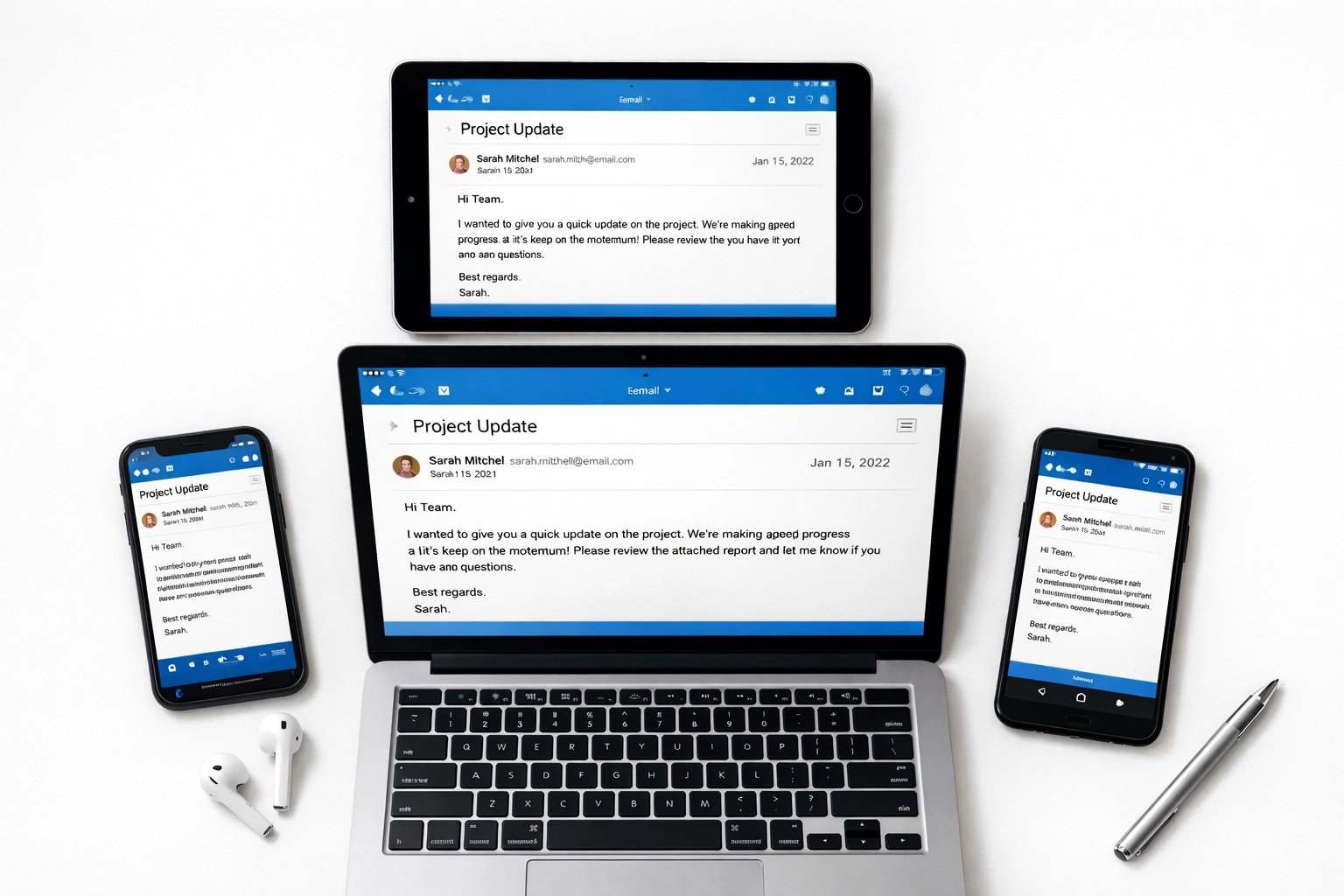
The good news? With IMAP, you can use both. Check email on your phone during your commute, reply from your laptop at the office, and follow up from webmail on your tablet at home. Everything stays in sync.
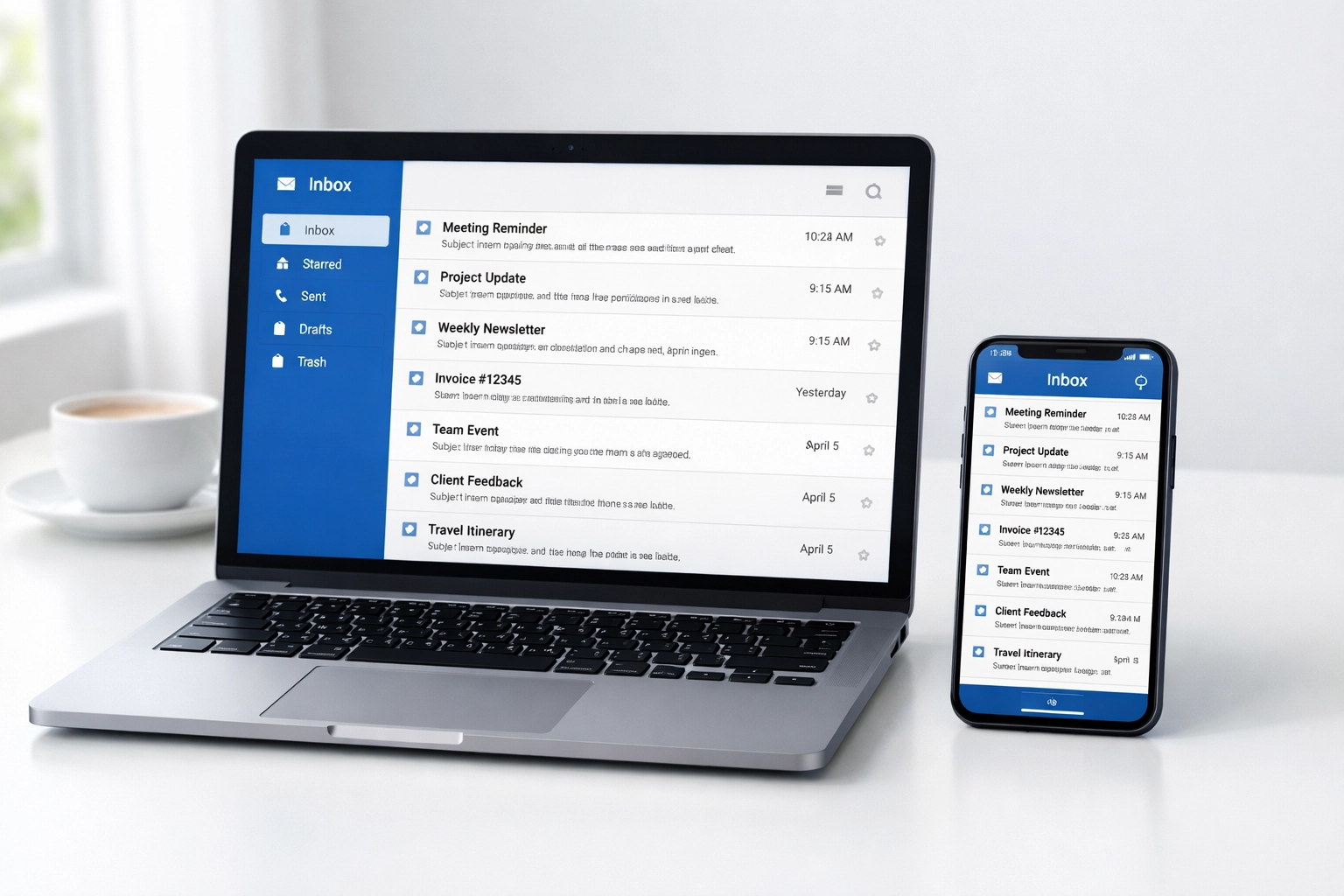
Why IMAP Makes Your Life Easier
IMAP (Internet Message Access Protocol) is the technology that makes all this syncing possible. Here’s what makes it so useful:
- Everything stays in sync across all your devices. Read an email on your phone? It shows as read on your laptop too.
- Your emails live on the server, so you’re not worried about losing everything if your computer crashes.
- Access your entire email history from any device, not just what’s been downloaded locally.
- Organize once, see it everywhere. Create a folder on your computer, and it appears on your phone automatically.
This is a huge upgrade from the old POP3 system where emails would download to one device and disappear from everywhere else.
Getting Your Server Settings
Before you can connect any device, you need your server settings.
You’ll need these details for any device you set up:
- (INCOMING) IMAP Server: imap.doumawebmail.com
- IMAP Port: 993 (with SSL/TLS encryption)
- (OUTGOING) SMTP Server: smtp.doumawebmail.com
- SMTP Port: 465 or 587 (depending on your client)
- Username: Your full email address (like you@yourdomain.com)
- Password: Your email password
- Security Type: SSL/TLS
Pro tip: Keep these settings handy in a note or screenshot them. You’ll use the same settings for every device you connect.
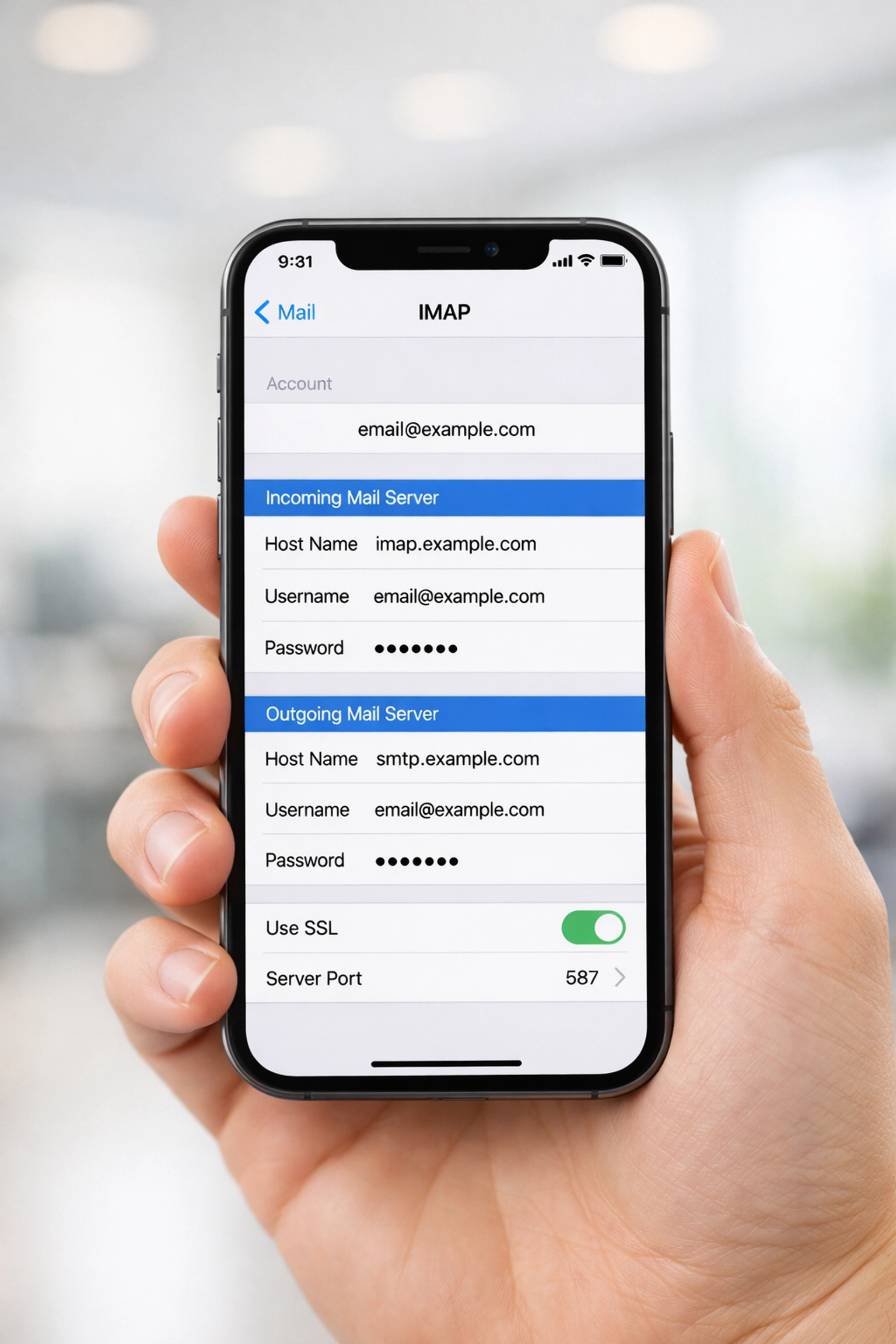
Setting Up Your iPhone or iPad
Let’s start with the device most people check first, their phone.
- Open Settings and scroll down to Mail
- Tap Accounts, then Add Account
- Choose Other at the bottom of the list
- Tap Add Mail Account
- Enter your name, full email address, password, and a description (like “Work Email”)
- Tap Next and select IMAP at the top
- Fill in the incoming mail server info:
- (INCOMING) IMAP Server: imap.doumawebmail.com
- IMAP Port: 993 (with SSL/TLS encryption)
- User Name: Your full email address
- Password: Your email password
- Fill in the outgoing mail server
- (OUTGOING) SMTP Server: smtp.doumawebmail.com
- SMTP Port: 465 or 587 (depending on your client)
- User Name: Your full email address
- Password: Your email password
- Tap Next and wait for verification
Your iPhone will test the connection. If everything’s correct, you’ll see checkmarks and can tap Save. Give it a minute to sync, and your emails will start appearing.
Setting Up on Windows (Outlook)
Microsoft Outlook is one of the most popular email clients for business users.
- Open Outlook and go to File > Add Account
- Enter your email address and click Connect
- When prompted, choose IMAP
- Enter your password
- If Outlook doesn’t automatically detect the settings, choose Manual setup
- Enter the server details:
- (INCOMING) IMAP Server: imap.doumawebmail.com
- IMAP Port: 993 (with SSL/TLS encryption)
- (OUTGOING) SMTP Server: smtp.doumawebmail.com
- SMTP Port: 465 or 587 (depending on your client)
- Username: Your full email address (like you@yourdomain.com)
- Password: Your email password
- Security Type: SSL/TLS
- Click Connect and let Outlook verify your settings
Once connected, Outlook will start downloading your email. Depending on how much email you have, this might take a few minutes.
Setting Up on Mac (Apple Mail)
Mac users have it pretty straightforward with Apple Mail.
- Open Mail and go to Mail > Accounts (or Preferences > Accounts)
- Click the + button to add an account
- Select Other Mail Account and click Continue
- Enter your name, email address, and password
- Click Sign In
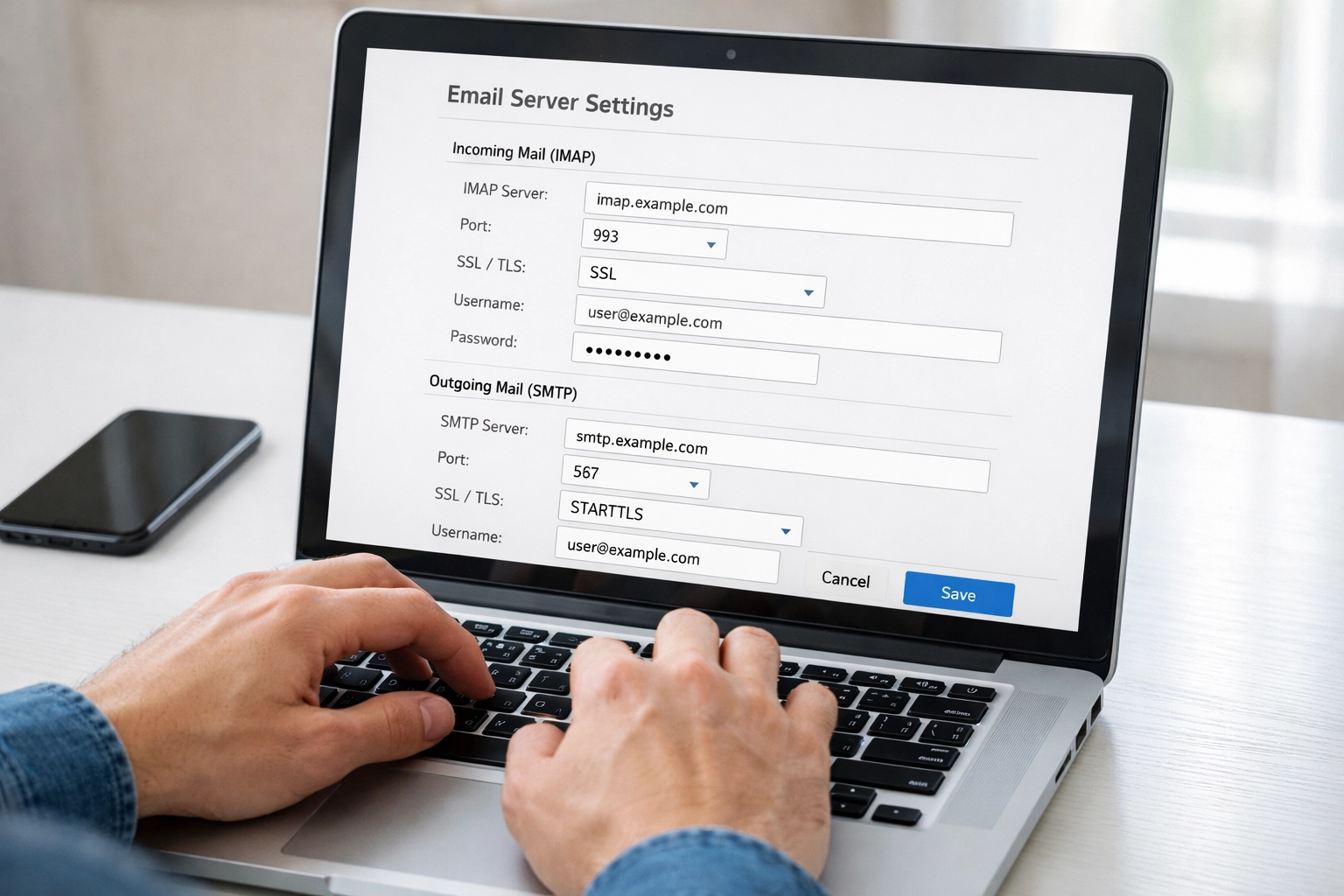
- If automatic setup doesn’t work, you’ll need to enter your server information manually:
- Account Type: IMAP
- (INCOMING) IMAP Server: imap.doumawebmail.com
- IMAP Port: 993 (with SSL/TLS encryption)
- (OUTGOING) SMTP Server: smtp.doumawebmail.com
- SMTP Port: 465 or 587 (depending on your client)
- Username: Your full email address (like you@yourdomain.com)
- Password: Your email password
- Security Type: SSL/TLS
- Make sure Use SSL is checked for both
- Click Sign In
Apple Mail will verify your account and start syncing your messages.
Setting Up on Android Devices
Android phones vary slightly depending on the manufacturer, but the general process is similar.
- Open your Email or Gmail app
- Go to Settings > Add Account
- Choose Other or Personal (IMAP)
- Enter your full email address and tap Next
- Choose Personal (IMAP) as the account type
- Enter your password and tap Next
- Configure your incoming server settings:
- (INCOMING) IMAP Server: imap.doumawebmail.com
- IMAP Port: 993 (with SSL/TLS encryption)
- (OUTGOING) SMTP Server: smtp.doumawebmail.com
- SMTP Port: 465 or 587 (depending on your client)
- Username: Your full email address (like you@yourdomain.com)
- Password: Your email password
- Security Type: SSL/TLS
- Configure your outgoing server with the same information (Port 465 or 587)
- Tap Next and follow any remaining prompts
Your Android device will start syncing your email within a few moments.
Bonus Features You Should Know About
Our new email service comes with some powerful features that go beyond just sending and receiving messages. You can access all of these through the Webmail Portal
Two-Factor Authentication (2FA): Add an extra layer of security to your email account. Even if someone gets your password, they won’t be able to access your email without the second authentication step.
Vacation Messages: Going on holiday? Set up an automatic reply to let people know you’re away and when you’ll be back. You can customize the message and choose exactly when it’s active.
Spam Filtering: Adjust your spam filter settings to be more or less aggressive depending on your needs. You can also create custom rules to automatically sort or filter certain types of email.
Email Forwarding: Automatically forward emails to another address, or set up email aliases to manage multiple addresses from one inbox.
Storage Management: Keep an eye on your mailbox size and clean up old messages when needed. The control panel shows you exactly how much space you’re using.
Quick Troubleshooting Tips
Running into issues? Here are the most common fixes:
- “Cannot verify server identity”: Make sure you’re using imap.doumawebmail.com (not your domain name) as the server address
- Authentication failed: Double-check that you’re using your full email address as the username, not just the part before the @
- Connection timeout: Verify you’re using the correct ports (993 for IMAP, 465 or 587 for SMTP) and that SSL/TLS is enabled
- Emails not syncing: Check your internet connection and make sure you selected IMAP, not POP3
If you’re still stuck, don’t hesitate to reach out to us. We’ve helped many of our clients get their email running smoothly, and we’re happy to walk you through it.
We’re Here to Help
Setting up email across multiple devices might seem overwhelming at first, but once you’ve done it once, it’s smooth sailing. The beauty of IMAP is that everything just works together seamlessly.
At Douma Web Design, we’re not just here to build your website and disappear. We provide ongoing support for all aspects of your web presence, including email hosting. Whether you need help with technical settings or just have questions about best practices, we’re just a message away.
Need a hand getting everything connected? Contact us and we’ll make sure your email is working perfectly on every device you use.
Comments are closed